

Resource Viewer
DDK
The DDK does not support these options by default, in order to get them you must build the drivers with certain flags:
PVRPerfServerComplete requires root access, e.g.
sudo PVRPerfServerCompleteto enable Resource Capture.PVR_DISABLE_HWPERF_RESOURCE_CAPTUREmust NOT be set when compiling the driver to enable Resource Capture.SUPPORT_TLT_PERF=1must also be set when compiling the driver to additionally support the Tile Lifetime Heatmap, in addition to enabling Resource Capture via the above.This feature requires at least DDK 1.12 (i.e. from
MAIN@5574463, with earlier work inMAIN@5519156andMAIN@5471659).
Framebuffer Capture and the Resource Viewer Window
The Resource Viewer window allows the capturing of default framebuffer and offscreen intermediate buffers from an GLES3 application.
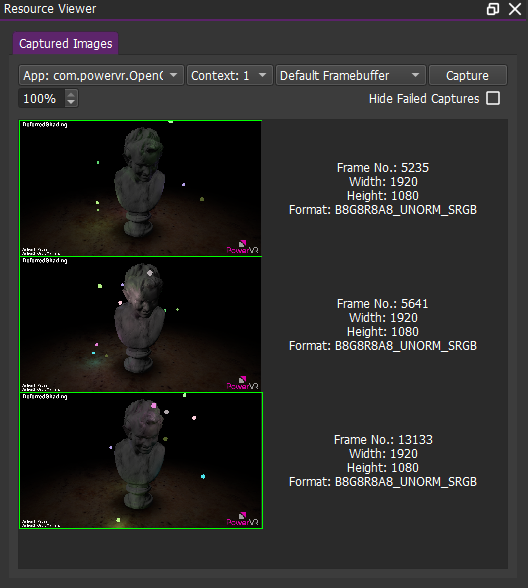
After connecting to a compatible device, a buffer capture can be requested for a particular GLES3 application running on the device by selecting the relevant PID and context ID in the Resource Viewer window and then selecting the Capture button.
Note
Requesting a capture will result in extra hardware tasks being kicked. This will affect the dynamics of the frame that is being captured.
The type of capture can be also be selected using a dropdown menu. The options are Default Framebuffer or Offscreen Buffers.
The Scale option determines how much the surface will be down-scaled when it is captured. The value can be between 1% and 100%. A value of 100% results in a full resolution image being captured, while a value of 50% results in half resolution image (rounded to the nearest integer). Down-scaling can be useful to reduce the performance overhead of a capture. Lower resolutions will reduce the time taken for the GPU to blit the image and reduce the captured image size. This will subsequently reduce memory and network bandwidth usage.
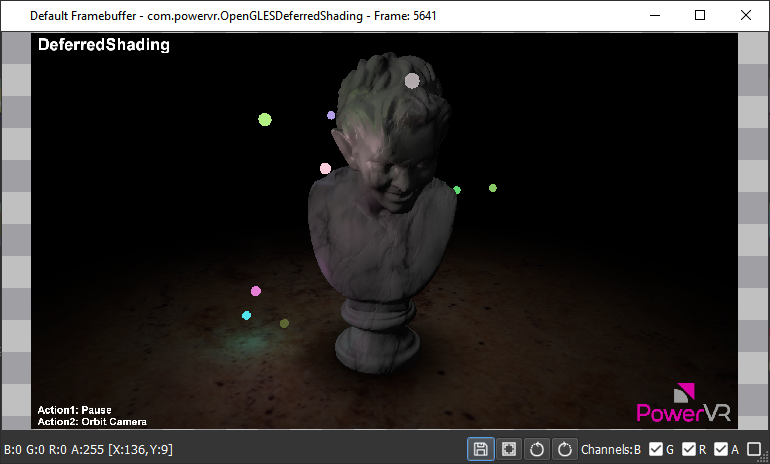
To look more closely at a particular captures in the Resource Viewer select the thumbnail to bring up the Image Inspector window.
Tile Lifetime Heatmap
In addition to capturing framebuffers, IMG A-Series allows the capture of tile lifetime information directly from the GPU. PVRTune can process this data to produce a tile heatmap of a frame.
Note
This feature is only available for IMG A-Series GPUs or newer.
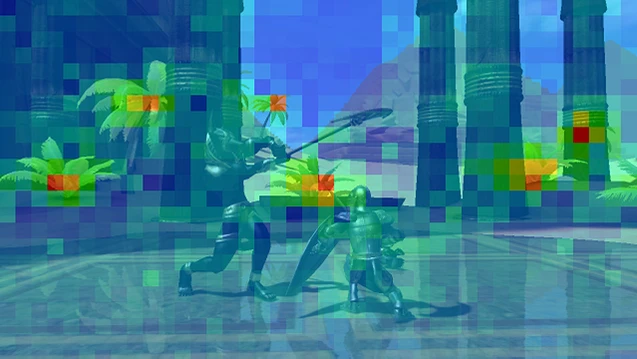
The redder the tile, the greater the number of cycles were required to render it. These usually indicate the areas of the frames which are the most graphically expensive. This makes it much easier to identify exactly which objects in the application may require optimisation.
Tile lifetime heatmaps can be captured while recording an application in the same way framebuffers can be captured. This can be achieved using the Resource Viewer window.
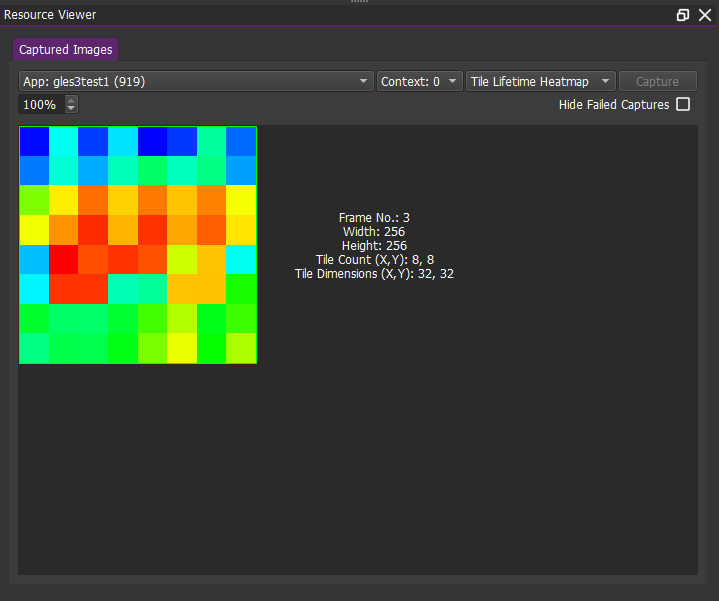
While recording an application select Tile Lifetime Heatmap from the dropdown and select Capture. When a heatmap has been captured it will appear in the preview section along with some of its characteristics, including:
the frame number;
the width and height in pixels;
the number of tiles in the x and y axis of the frame;
the dimensions of each tile.
Double-clicking a heatmap from the Resource Viewer will load it in a separate window for more in-depth analysis.
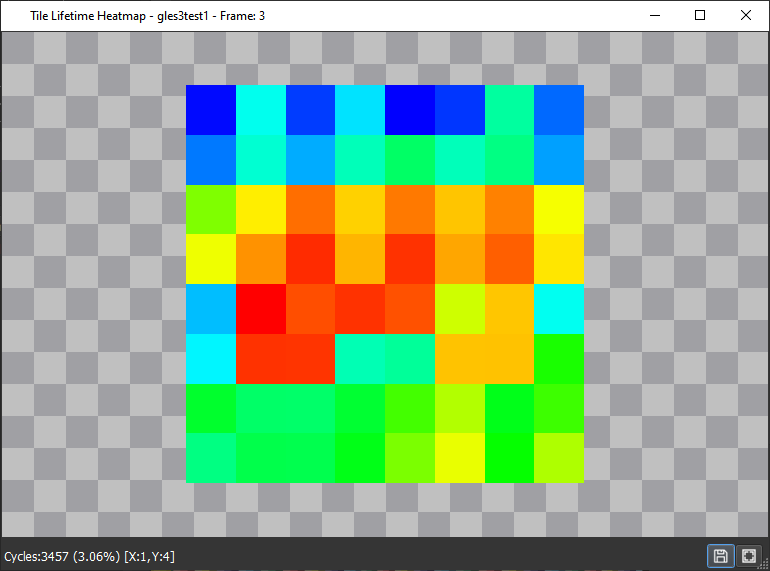
Hovering over each tile individually will display the exact cycle cost required to render that tile. Additionally, the proportion of the number of cycles required to render the entire frame is displayed as a percentage in brackets. Heatmaps can be saved as images using the save icon in the bottom right of the window.